
What is Nmap? A Complete Beginner's Guide to Network Scanning and Essential Commands
what Nmap is, how it works, and how to use the most important Nmap commands for network discovery, port scanning, service detection, and operating system identification. This complete beginner-friendly guide includes installation steps, practical examples, best practices, and frequently asked questions.
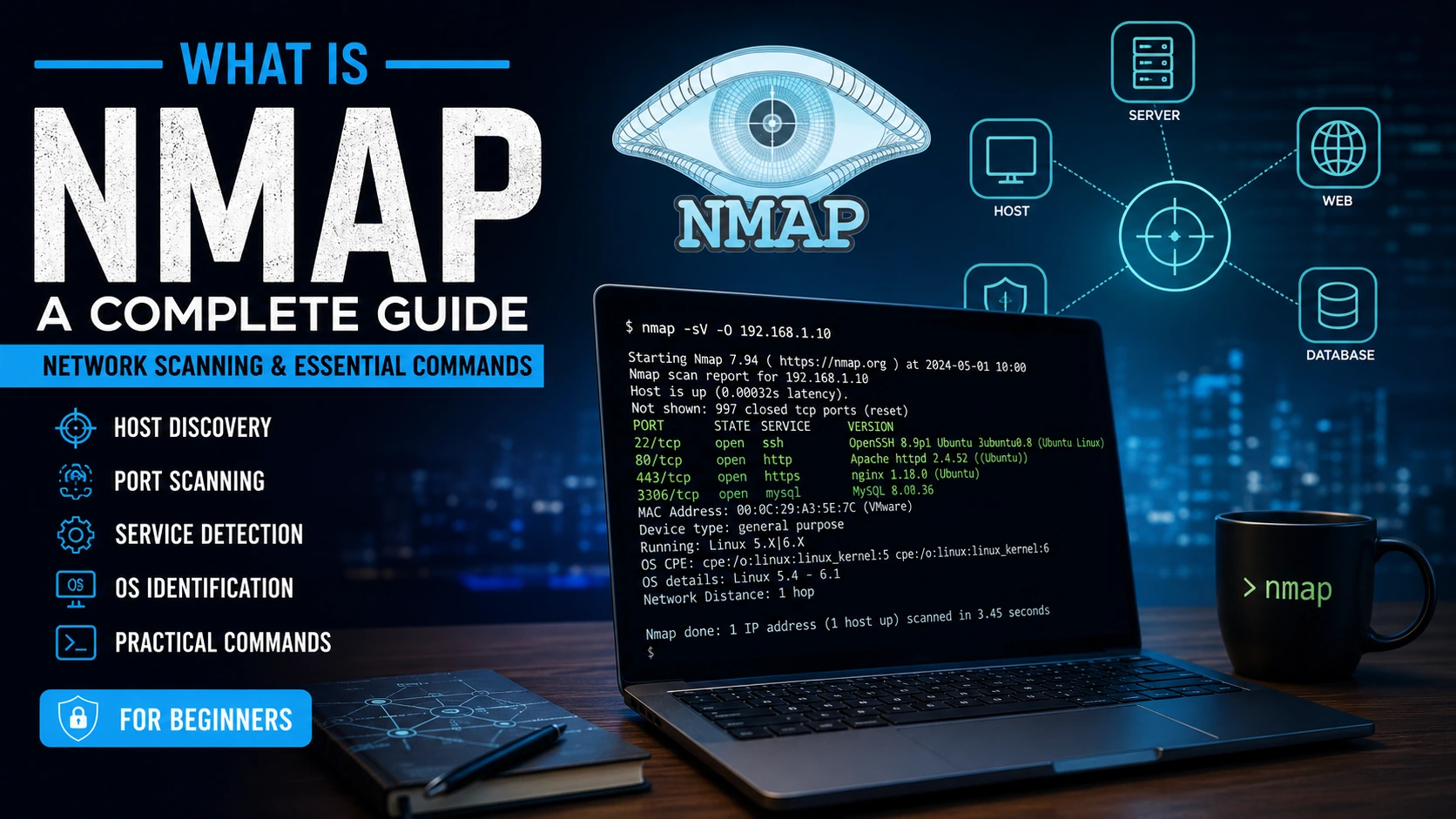
Table of Content
Introduction
In today's digital world, every website, server, application, and network is connected through the internet. Whether you are a system administrator, cybersecurity professional, ethical hacker, DevOps engineer, or someone simply learning networking, understanding how devices communicate and how networks are structured is an essential skill.
One of the most powerful tools for exploring and analyzing networks is Nmap.
Nmap, short for Network Mapper, is one of the most trusted open-source tools used for discovering hosts, identifying open ports, detecting running services, and understanding the security posture of systems. Since its release in 1997, it has become a standard tool used by cybersecurity experts, IT administrators, penetration testers, and organizations around the world.
Although Nmap is widely associated with ethical hacking, its primary purpose is much broader. Organizations use it every day to inventory devices, troubleshoot network problems, verify firewall configurations, monitor system availability, and improve overall security.
In this guide, you will learn what Nmap is, how it works, when it should be used, and the essential commands every beginner should know. Whether you want to build a career in cybersecurity or simply improve your networking knowledge, mastering Nmap is a valuable step.
What is Nmap?
Nmap (Network Mapper) is a free and open-source command-line tool designed to discover devices connected to a network and gather detailed information about them.
Instead of manually checking every computer, server, or router on a network, Nmap automates the process by sending carefully crafted network packets and analyzing the responses.
Using those responses, Nmap can determine information such as:
- Which devices are currently online
- Which IP addresses are active
- Which ports are open
- Which services are running
- Which operating system is likely installed
- Firewall behavior
- Network topology
- Service versions
- Potential misconfigurations
This information helps administrators understand their network while helping security professionals identify systems that may require attention.
Why is Nmap Important?
Imagine a company with hundreds of computers, servers, switches, printers, IP cameras, and IoT devices.
Without a network discovery tool, administrators would struggle to answer questions like:
- Which devices are connected?
- Which systems are online?
- Are unauthorized devices present?
- Which ports are exposed?
- Are unnecessary services running?
- Which machines require updates?
Nmap answers these questions quickly and efficiently.
Instead of spending hours manually checking devices, a scan can provide detailed information within minutes.
Who Uses Nmap?
Nmap is used across many industries.
Some common users include:
Ethical Hackers
Ethical hackers use Nmap during authorized security assessments to understand the target environment before testing for vulnerabilities.
Penetration Testers
Professional penetration testers perform network reconnaissance using Nmap before beginning security testing.
Network Administrators
Administrators use Nmap to:
- Discover new devices
- Monitor network growth
- Verify firewall rules
- Identify inactive systems
- Troubleshoot connectivity issues
System Administrators
System administrators use Nmap to check server availability and verify that services are running as expected.
Security Teams
Cybersecurity teams regularly scan internal infrastructure to identify unnecessary exposed services and reduce the attack surface.
Students
Students learning networking, Linux, cybersecurity, and ethical hacking often begin with Nmap because it introduces many core networking concepts in a practical way.
Key Features of Nmap
Nmap is much more than a simple port scanner.
Some of its most useful features include:
Network Discovery
Finds active devices connected to a network.
Example:
- Computers
- Servers
- Routers
- Printers
- Cameras
- Mobile devices
Port Scanning
Determines which ports are open.
Examples include:
- Port 22 (SSH)
- Port 80 (HTTP)
- Port 443 (HTTPS)
- Port 3306 (MySQL)
Knowing which ports are open helps administrators understand what services are available.
Service Detection
Nmap can identify the services running behind open ports.
Instead of simply reporting:
Port 80 Open
It may identify:
Apache HTTP Server
or
Nginx Web Server
This provides much more useful information.
Version Detection
Nmap can identify software versions.
Example:
Instead of:
SSH
It may report:
OpenSSH 9.2
This helps determine whether software is outdated.
Operating System Detection
Nmap can estimate the operating system by analyzing TCP/IP characteristics.
Possible detections include:
- Windows
- Ubuntu
- Debian
- CentOS
- Fedora
- macOS
While not always perfect, OS detection is often highly accurate.
Script Engine
One of Nmap's strongest features is the Nmap Scripting Engine (NSE).
Thousands of scripts can automate tasks such as:
- Service enumeration
- SSL checks
- DNS information gathering
- SMB analysis
- FTP checks
- HTTP information collection
- Misconfiguration detection
Advantages of Using Nmap
Nmap offers several benefits that make it one of the most widely used networking tools.
Free and Open Source
Anyone can download and use it without licensing costs.
Cross-Platform
Nmap works on:
- Windows
- Linux
- macOS
- BSD
Fast
It can scan hundreds or thousands of systems efficiently when used appropriately on networks you are authorized to assess.
Reliable
Nmap has been trusted by IT professionals and security experts for decades.
Flexible
It supports numerous scan types, detection techniques, timing options, and output formats.
How Does Nmap Work?
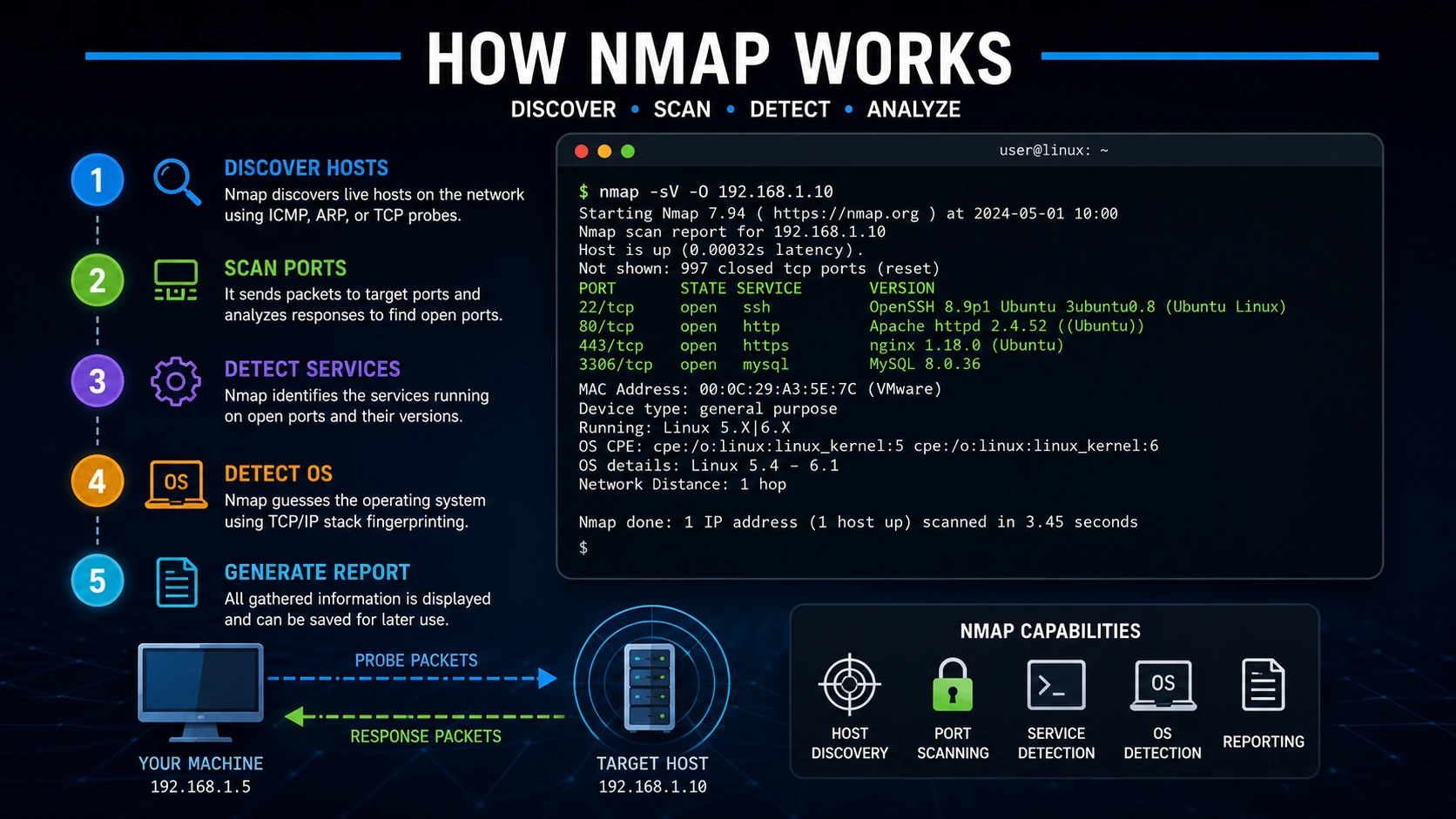
Nmap works by sending specially crafted network packets to a target system.
The target responds differently depending on:
- Open ports
- Closed ports
- Firewall rules
- Operating system behavior
- Running services
Nmap analyzes those responses and builds a detailed picture of the target.
The process generally looks like this:
- Send probe packets.
- Receive responses.
- Analyze network behavior.
- Identify hosts.
- Detect open ports.
- Identify services.
- Estimate operating system.
- Generate a report.
This automated process makes network reconnaissance much faster than manual inspection.
Installing Nmap
Install on Windows
- Visit the official Nmap website.
- Download the latest Windows installer.
- Run the installer.
- Complete the installation.
- Open Command Prompt or PowerShell.
- Verify the installation:
nmap --version
Example output:
Nmap version 7.95
Compiled with:
OpenSSL
Npcap
Lua
Install on Ubuntu/Debian
Update package information:
sudo apt update
Install Nmap:
sudo apt install nmap
Check the version:
nmap --version
Install on Fedora
sudo dnf install nmap
Install on CentOS/RHEL
sudo yum install nmap
or
sudo dnf install nmap
Install on macOS
Using Homebrew:
brew install nmap
Verify:
nmap --version
Understanding Ports Before Using Nmap
Before running scans, it's important to understand what ports are.
Think of a computer as a building.
- The IP address is the building's address.
- Ports are individual doors.
- Services are the people working behind those doors.
Some common ports include:
| Port & Services | |
| 20 | FTP Data |
| 21 | FTP |
| 22 | SSH |
| 23 | Telnet |
| 25 | SMTP |
| 53 | DNS |
| 80 | HTTP |
| 110 | POP3 |
| 143 | IMAP |
| 443 | HTTPS |
| 3306 | MySQL |
| 5432 | PostgreSQL |
| 6379 | Redis |
| 8080 | Alternative HTTP |
If a port is open, it usually means a service is listening for connections.
Your First Nmap Scan
The simplest command is:
nmap 192.168.1.10
Replace the IP with a system you own or are explicitly authorized to test.
Nmap will:
- Check if the host is reachable.
- Identify common open ports.
- Display the scan results.
Example output:
Starting Nmap

Host is up.

PORT STATE SERVICE

22/tcp open ssh

80/tcp open http

443/tcp open https
This indicates that the system is reachable and has SSH, HTTP, and HTTPS services available.
Scan a Website by Domain Name
Instead of an IP address, you can scan a domain that resolves to an IP address:
nmap example.com
Nmap resolves the domain and performs the scan against the associated host.
Scan Multiple Hosts
You can specify several hosts in one command:
nmap 192.168.1.10 192.168.1.11 192.168.1.12
Nmap scans each host sequentially and reports the results.
Scan an IP Range
To scan a range of addresses:
nmap 192.168.1.1-50
This checks addresses from .1 through .50, making it useful for discovering devices on a local network you manage.
Scan an Entire Subnet
To scan a whole subnet:
nmap 192.168.1.0/24
This examines all possible hosts in the /24 network, which is common for home or office environments.
Scan Specific Ports
Instead of scanning default ports, specify exactly which ones you want to check:
nmap -p 22,80,443 192.168.1.10
This limits the scan to SSH, HTTP, and HTTPS, reducing scan time when you only need certain services.
Understanding Different Types of Nmap Scans
Not every situation requires the same scanning method. Different scan types provide different levels of information and have varying performance characteristics.
Choosing the right scan depends on your goal, such as checking service availability, inventorying systems, or troubleshooting connectivity.
TCP SYN Scan
The TCP SYN Scan is one of the most commonly used scan types. It begins the TCP handshake by sending a SYN packet and analyzes the response to determine whether a port is open.
Command:
sudo nmap -sS 192.168.1.10
When to use it:
- Fast general-purpose port scanning
- Routine network inventory
- Checking server availability
Advantages:
- Fast scanning
- Widely supported
- Good balance between speed and accuracy
TCP Connect Scan
If administrative privileges are unavailable, Nmap can perform a standard TCP Connect Scan using the operating system's networking functions.
Command:
nmap -sT 192.168.1.10
Use cases:
- Standard user accounts
- Windows systems without elevated privileges
- General connectivity verification
UDP Scan
Many important services use UDP instead of TCP.
Examples include:
- DNS
- DHCP
- SNMP
- NTP
- TFTP
To check UDP ports:
sudo nmap -sU 192.168.1.10
Because UDP services often respond differently than TCP services, UDP scans usually take longer to complete.
Scan All TCP Ports
By default, Nmap scans only the most common ports.
To examine every TCP port:
nmap -p- 192.168.1.10
This scans ports 1 through 65535.
This option is useful when documenting services on systems you manage, since applications sometimes listen on non-standard ports.
Scan a Port Range
Instead of every port, scan only a selected range.
Example:
nmap -p 1-1000 192.168.1.10
Another example:
nmap -p 20-100 192.168.1.10
Scan a Single Port
To verify one specific service:
nmap -p 443 192.168.1.10
This is helpful when confirming whether a service is reachable after configuration changes.
Scan Multiple Specific Ports
nmap -p 22,80,443,3306 192.168.1.10
This scans only the listed ports.
Detect Running Service Versions
Knowing that a port is open is useful, but identifying the software behind it is even more valuable for system administration and asset management.
Command:
nmap -sV 192.168.1.10
Example output:
22/tcp open ssh OpenSSH 9.2
80/tcp open http Apache httpd 2.4
443/tcp open https nginx 1.26
3306/tcp open mysql MySQL 8.0
Service version detection helps administrators maintain accurate inventories and identify software that may need updating.
Detect the Operating System
Nmap can estimate the operating system based on network characteristics.
Command:
sudo nmap -O 192.168.1.10
Example output:
OS details:
Linux 6.x
Possible detections include:
- Ubuntu
- Debian
- Fedora
- Windows
- macOS
- FreeBSD
OS detection is an estimate and may not always be exact.
Perform Service and OS Detection Together
Combine useful options into one scan:
sudo nmap -A 192.168.1.10
The -A option enables:
- Operating system detection
- Service version detection
- Default NSE scripts
- Traceroute
This provides a broad overview of a host in a single command.
Check if a Host Is Online
Sometimes you only want to discover which devices are reachable without scanning ports.
Command:
nmap -sn 192.168.1.0/24
Example output:
Host is up.
This type of scan is useful for inventorying devices on a network you administer.
Skip Host Discovery
If a host blocks discovery probes but you still need to test ports on an authorized system:
nmap -Pn 192.168.1.10
Nmap assumes the host is online and proceeds with the scan.
Increase Scan Speed
Timing templates allow you to adjust scan performance.
Examples:
nmap -T3 192.168.1.10


nmap -T4 192.168.1.10
Common timing levels:
| Option & Description | |
| T0 | Very slow |
| T1 | Slow |
| T2 | Polite |
| T3 | Normal |
| T4 | Faster |
| T5 | Fastest |
For most administrative tasks on trusted networks, T3 or T4 is appropriate.
Save Scan Results
Saving results is useful for documentation and comparison over time.
Normal output:
nmap -oN result.txt 192.168.1.10
XML format:
nmap -oX result.xml 192.168.1.10
Grepable format:
nmap -oG result.gnmap 192.168.1.10
Save all formats simultaneously:
nmap -oA network_scan 192.168.1.10
This creates:
network_scan.nmapnetwork_scan.xmlnetwork_scan.gnmap
Scan Multiple Hosts from a File
Create a file named hosts.txt:
192.168.1.10
192.168.1.11
192.168.1.12
Then run:
nmap -iL hosts.txt
This is convenient when managing multiple known systems.
Exclude Specific Hosts
If certain systems should not be scanned:
nmap 192.168.1.0/24 --exclude 192.168.1.20
Or exclude several:
nmap 192.168.1.0/24 --exclude 192.168.1.20,192.168.1.30
The Nmap Scripting Engine (NSE)
The Nmap Scripting Engine extends Nmap with scripts that automate many common information-gathering and administrative tasks.
Scripts are grouped into categories such as:
- Safe
- Default
- Discovery
- Version
- Auth
- Broadcast
Using trusted, built-in scripts can provide additional context about services running on systems you are authorized to assess.
Run the Default NSE Scripts
nmap -sC 192.168.1.10
These scripts perform standard checks that are generally useful for identifying service information.
Combine Version Detection with Default Scripts
nmap -sC -sV 192.168.1.10
This is one of the most commonly used combinations because it reports service versions and gathers additional service details.
Display Available NSE Scripts
To view installed scripts on Linux:
ls /usr/share/nmap/scripts
Search for scripts related to HTTP:
ls /usr/share/nmap/scripts | grep http
Search for DNS-related scripts:
ls /usr/share/nmap/scripts | grep dns
Exploring the available scripts helps you understand what information can be collected for administrative purposes.
Useful Command Combinations
Basic Scan
nmap 192.168.1.10
Service Detection
nmap -sV 192.168.1.10
OS Detection
sudo nmap -O 192.168.1.10
Full Feature Scan
sudo nmap -A 192.168.1.10
Scan Every TCP Port
nmap -p- 192.168.1.10
Scan Selected Ports
nmap -p 22,80,443 192.168.1.10
Ping Sweep
nmap -sn 192.168.1.0/24
Save Results
nmap -oA report 192.168.1.10
Best Practices for Using Nmap
To get accurate and responsible results:
- Always obtain authorization before scanning systems or networks.
- Start with smaller scans before scanning larger environments.
- Document scan results for future comparison.
- Keep Nmap updated to benefit from improved detection and new NSE scripts.
- Verify important findings with other administrative tools when appropriate.
- Scan during approved maintenance windows if working in production environments.
- Avoid unnecessarily aggressive scan settings on critical infrastructure.
- Respect organizational security policies and local laws.
Common Beginner Mistakes
Many newcomers make avoidable mistakes when learning Nmap.
Some common examples include:
- Assuming every open port is a security problem.
- Ignoring UDP services.
- Forgetting to save scan results.
- Running scans without understanding the network layout.
- Using incorrect IP ranges.
- Misinterpreting OS detection as 100% accurate.
- Scanning systems without permission.
Learning to interpret results carefully is just as important as learning the commands themselves.
Real-World Use Cases of Nmap
Nmap is not just a tool for cybersecurity professionals. It is widely used across IT operations, network administration, cloud environments, DevOps, and security teams. Below are some of the most common real-world applications.
1. Network Inventory Management
As organizations grow, keeping track of connected devices becomes increasingly difficult.
A typical office network may include:
- Desktop computers
- Laptops
- Servers
- Wi-Fi routers
- Printers
- IP phones
- CCTV systems
- IoT devices
- Virtual machines
Nmap helps administrators discover active devices and maintain an accurate inventory, making it easier to identify unknown or unauthorized systems.
2. Server Health Verification
After deploying a new application or updating a server, administrators often verify that the expected services are available.
For example, after installing a web application, an administrator may confirm that:
- HTTP is accessible on port 80
- HTTPS is available on port 443
- SSH is reachable on port 22 (if intended)
This helps ensure that the deployment was completed successfully.
3. Firewall Validation
Firewalls are designed to control which network connections are allowed.
Administrators use Nmap to verify that only the intended ports are accessible.
For example:
- Public web server:
- Port 80 → Open
- Port 443 → Open
- Database ports → Closed
If unnecessary ports are exposed, administrators can adjust firewall rules to reduce risk.
4. Security Audits
Organizations regularly perform security audits to understand their network exposure.
Nmap helps answer questions such as:
- Which services are running?
- Are unnecessary services enabled?
- Which hosts are active?
- Are there unexpected devices on the network?
These audits support better security planning and ongoing maintenance.
5. Troubleshooting Network Issues
If users report that an application or website is unavailable, Nmap can help determine whether the required service is reachable.
For example, administrators can verify whether:
- The server is online
- The required service is listening
- The expected port is open
This information can narrow down the source of a connectivity problem.
6. Cloud Infrastructure Management
Many organizations run applications on cloud platforms.
Whether using virtual machines or container-based deployments, administrators can use Nmap to verify network exposure and ensure that only intended services are accessible within approved environments.
Understanding Nmap Scan Results
Running a scan is only the first step. Understanding the results is equally important.
Example:
Starting Nmap

Host is up.

PORT STATE SERVICE

22/tcp open ssh

80/tcp open http

443/tcp open https

3306/tcp closed mysql
Let's interpret this output.
Host is Up
This means the target system responded to Nmap's probes and appears reachable.
Open Port
An open port indicates that an application or service is actively listening for incoming connections.
Example:
22/tcp open ssh
This means an SSH service is available.
Closed Port
A closed port is reachable but no application is listening on that port.
Example:
3306/tcp closed mysql
This suggests the MySQL service is not currently accepting connections on that port.
Filtered Port
Sometimes Nmap reports a port as filtered.
This generally means that a firewall or network filtering device prevented Nmap from determining the port's exact state.
Filtered results do not necessarily indicate a problem they often reflect intentional security controls.
Reading Service Detection Output
When using version detection:
nmap -sV 192.168.1.10
You may see:
22/tcp open ssh OpenSSH 9.2

80/tcp open http Apache httpd 2.4

443/tcp open https nginx 1.26
This tells you:
- SSH is running OpenSSH.
- HTTP is provided by Apache.
- HTTPS is provided by Nginx.
This information is useful for asset inventories and software maintenance.
Common Nmap Workflow
Many administrators follow a structured process:
Step 1
Discover active hosts.
Step 2
Identify open ports.
Step 3
Determine running services.
Step 4
Detect service versions.
Step 5
Estimate the operating system.
Step 6
Review results and compare them with expected configurations.
Step 7
Document findings.
This repeatable workflow helps keep environments organized and secure.
Tips for Beginners
If you're new to Nmap, these recommendations will help you learn effectively:
- Practice on your own lab or home network.
- Learn basic networking concepts such as IP addresses, ports, TCP, and UDP.
- Understand what each command does before using it.
- Save scan results so you can compare changes over time.
- Keep notes about the commands you use most frequently.
- Read the built-in help documentation.
Consistency is the best way to become comfortable with the tool.
Ethical and Responsible Use
Nmap is a legitimate network administration and security tool, but it should always be used responsibly.
Keep these principles in mind:
- Only scan systems that you own or are explicitly authorized to assess.
- Respect organizational policies and applicable laws.
- Avoid disrupting production environments.
- Inform stakeholders before conducting scheduled assessments.
- Store scan results securely, especially if they contain infrastructure details.
Responsible use protects both your organization and your professional reputation.
Nmap vs Other Network Scanning Tools
While Nmap is one of the most popular tools, it is often used alongside other utilities.
| Tool & Primary Purpose | |
| Nmap | Network discovery and port scanning |
| Wireshark | Packet capture and protocol analysis |
| Netcat | Network connections and testing |
| Angry IP Scanner | Fast IP discovery |
| Masscan | High-speed large-scale port scanning |
| Zenmap | Graphical interface for Nmap |
Each tool has a different purpose, and many professionals use several of them together depending on the task.
Benefits of Learning Nmap
Learning Nmap provides practical skills that are valuable in many technical careers.
Benefits include:
- Improved understanding of networking concepts.
- Better troubleshooting skills.
- Stronger knowledge of network services.
- Ability to perform structured network inventories.
- Foundation for cybersecurity and penetration testing.
- Experience with real-world system administration tasks.
Because of its versatility, Nmap is often one of the first tools introduced in networking and cybersecurity courses.
Conclusion
Nmap has earned its reputation as one of the most reliable and widely used network discovery tools available today. From identifying active devices to detecting running services and understanding network configurations, it provides administrators and security professionals with the information they need to manage infrastructure effectively.
However, learning the commands is only part of becoming proficient with Nmap. The real value comes from understanding what the results mean, documenting your findings, and using that information to improve network reliability and security. Regular, authorized scanning helps organizations maintain accurate inventories, validate configurations, and detect unexpected changes before they become larger issues.
If you're beginning your networking or cybersecurity journey, mastering Nmap is an excellent investment. Start with basic host discovery and port scans, then gradually explore service detection, operating system identification, and the Nmap Scripting Engine. With consistent practice in a controlled lab or authorized environment, you'll build skills that are applicable across IT operations, cloud infrastructure, DevOps, and cybersecurity.
Frequently Asked Questions (FAQs)
1. What is Nmap mainly used for?
Nmap is primarily used for network discovery and port scanning. It helps administrators identify active devices, discover open ports, detect running services, estimate operating systems, and understand the overall structure of a network. It is commonly used for inventory management, troubleshooting, and authorized security assessments.
2. Is Nmap free to use?
Yes. Nmap is completely free and open source. It can be downloaded and used on Windows, Linux, macOS, and several other operating systems without licensing fees. Its open-source nature also allows the community to contribute improvements and scripts.
3. Is Nmap only for ethical hackers?
No. Although ethical hackers frequently use Nmap, it is also widely used by network administrators, system administrators, DevOps engineers, cloud engineers, IT support teams, and cybersecurity professionals for everyday operational tasks such as network inventory, troubleshooting, and configuration validation.
4. Can Nmap identify the operating system of a device?
Yes. Nmap includes operating system detection capabilities that analyze network responses to estimate the operating system running on a target. While the results are often accurate, they are estimates and should be verified when precise identification is required.
5. Why should beginners learn Nmap?
Nmap helps beginners understand essential networking concepts such as IP addresses, ports, services, TCP/IP communication, and host discovery. It is widely recognized in the IT and cybersecurity industry, making it an excellent tool for building practical skills that are useful in system administration, cloud computing, DevOps, and cybersecurity careers.
Final Thoughts
Nmap is much more than a simple port scanner it is a comprehensive network discovery and analysis tool trusted by professionals worldwide. Whether you're maintaining servers, managing enterprise networks, or learning cybersecurity, understanding how to use Nmap responsibly will make you more effective at diagnosing issues, documenting infrastructure, and maintaining secure, well-managed systems.
With the knowledge from this three-part guide, you now have a strong foundation to begin exploring Nmap confidently in your own authorized lab or organizational environment.